Accessing a Shared Mailbox in Outlook on the Web
Accessing a Shared Mailbox in Outlook on the Web
This article explains how to access a shared mailbox, or a mailbox that you have been delegated access to, using Outlook on the Web.
There are a couple of different ways you can get access:
1. Open the shared mailbox in a separate browser window. This works well if you:
- only need occasional and temporary access
- need to also access the calendar and contacts
- work in a separate space from your own mailbox
2. Add the shared mailbox so that it displays under your primary mailbox. This works well if you:
- need to frequently access the mailbox
- only need to work with mail
1. Open the Shared Mailbox in a Separate Browser Window
Login to your Microsoft 365 account and open Outlook on the web.
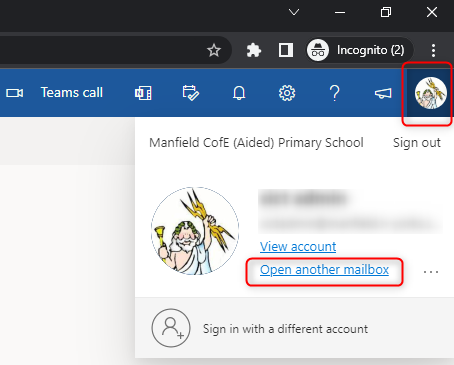
Click on your profile picture in the top right-hand corner of Outlook. This will open the account manager.
Click on Open another mailbox
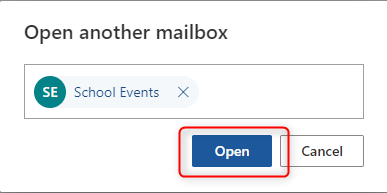
Type in the e-mail address of the mailbox that you want to open. Select the correct mailbox when it is found.
Click Open.
The shared mailbox will now open in a separate window when you can work with it, accessing all the mailbox features including mail, calendar and contacts.
2. Add the Shared Mailbox Under your Primary Mailbox
Login to your Office 365 account
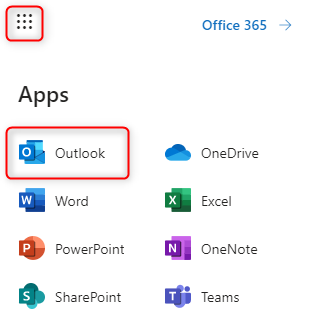
Click on Outlook to open it and access your e-mails
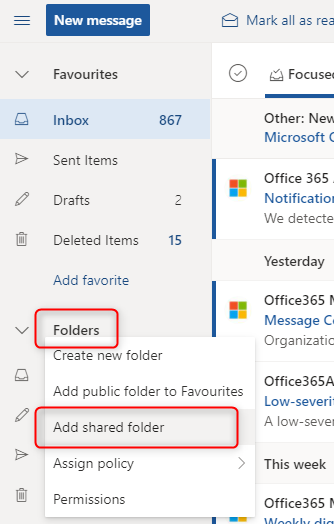
In the left hand Navigation Pane, right-click on Folders
Click Add shared folder
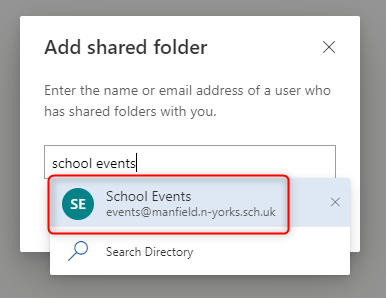
Type the name or e-mail address of the shared mailbox in the Add Shared Folder dialog box.
From the list of shared mailboxes suggested, click on the one that you wish to open. In this example School Events
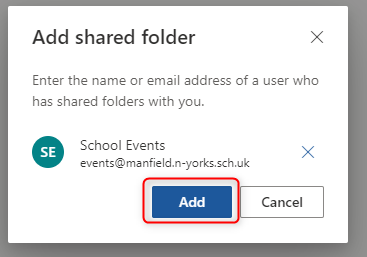
Click Add to add the shared folder to your Outlook
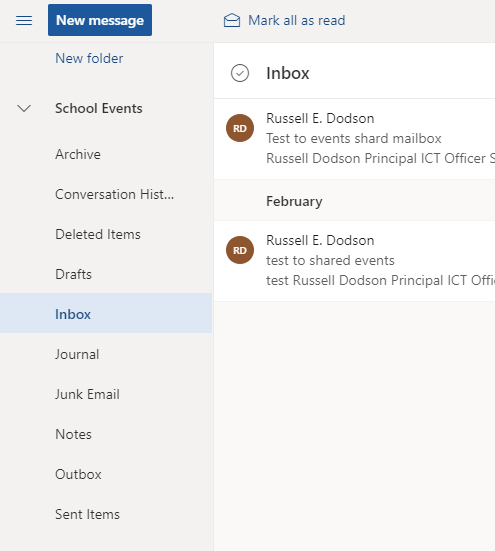
You will now see your chosen Shared mailbox added under the default ‘Folders’ entry
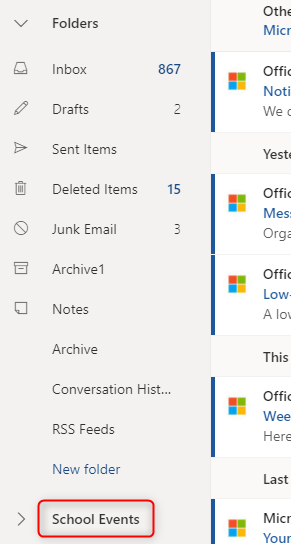
Click on the chevron (>) to expand the shared folder
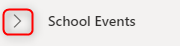
The shared mailbox will expand and show you the various folders associated with it, for example the inbox.
You can now access and use this shared mailbox from within your Outlook